Item Conduits

Item Conduit
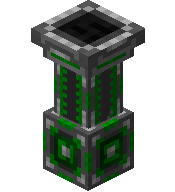
Item Exporter
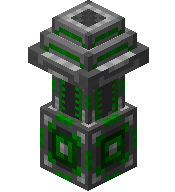
Item Importer
The Item Conduit system is a powerful way to automate item transport between your machines and storage. With Exporters pulling items out of containers and Importers pushing them into their destinations, you can create complex item networks that keep your base running smoothly.
It's made up of three blocks that work together:
| Block | What It Does |
|---|---|
| Item Conduit | The pipe that connects everything. Items flow through it. |
| Item Exporter | Pulls items out of a container and sends them through the network. |
| Item Importer | Receives items into a destination container. |
How to Set Up
Exporting Generally
- Place a container (chest, barrel, machine, etc.) with the items you want to move.
- Place an Item Exporter facing towards that container.
- Connect the Exporter to your destination using Item Conduits.
- Done! Items will start transferring automatically.
Exporting Specifically
- Place a container (chest, barrel, machine, etc.) with the items you want to move.
- Place an Item Exporter facing towards that container.
- Connect the Exporter to your destination using Item Conduits.
- Place an Item Importer facing towards the destination container with a Filter Upgrade installed if you want to control which items are allowed through.
- Done! Items will start transferring automatically, following any filters you set up.
💡 Tip: The Exporter must face the container they interact with. Make sure the front of the block points at the right container.
Example Setup
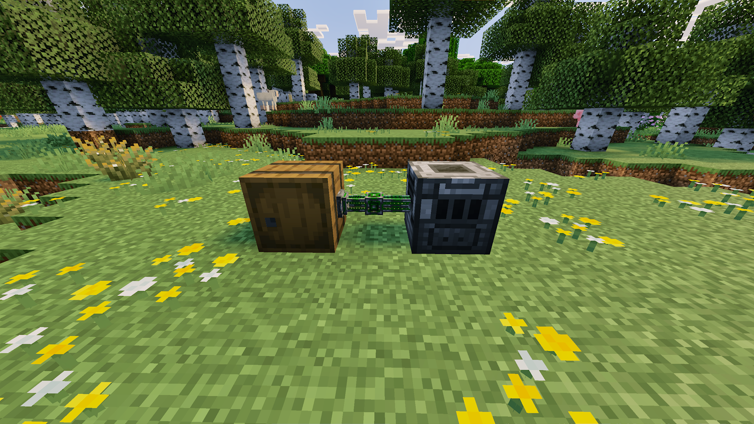
An Item Exporter pulling combustible items from a Barrel and feeding them into an Incinerator.
Transfer Modes
The Item Exporter supports three transfer modes you can choose from its menu:
| Mode | Behavior |
|---|---|
| Nearest | Sends items to the closest Importer first. |
| Farthest | Sends items to the farthest Importer first. |
| Round Robin | Distributes items evenly across all connected Importers. (Only stacks) |
You can also toggle the Exporter ON/OFF at any time from its menu.
Speed Upgrades
Both the Exporter and Importer get faster with Speed Upgrades installed:
| Upgrade Level | Transfer Speed |
|---|---|
| 0 (No Upgrades) | Every 10 ticks |
| 1 | Every 8 ticks |
| 2 | Every 6 ticks |
| 3 | Every 4 ticks |
| 4 | Every 2 ticks |
Filter Upgrades
Adding a Filter Upgrade to an Exporter or Importer unlocks the ability to control which items are allowed to pass through.
Item Exporter Interface
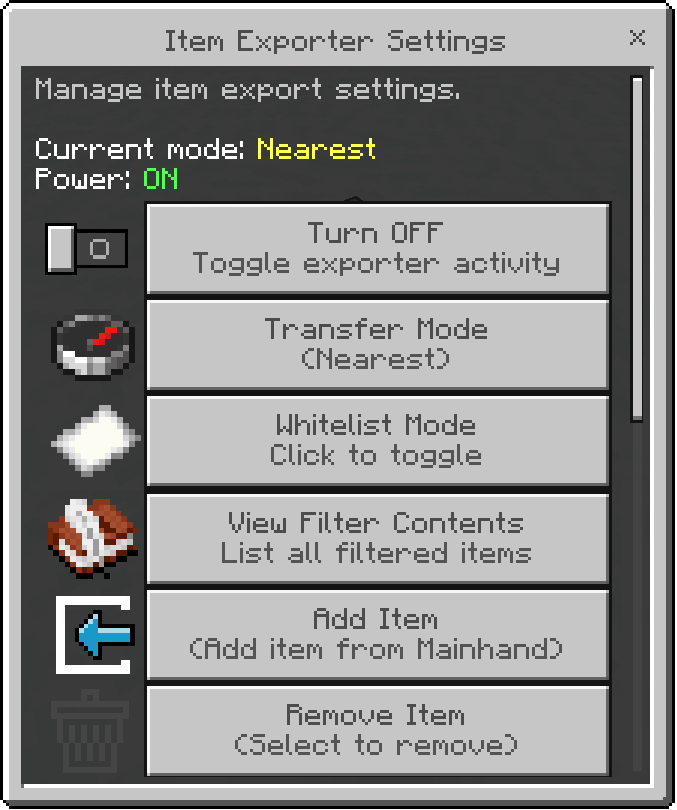
With a Filter Upgrade, the Exporter's menu lets you:
- Switch between Whitelist (only allow specific items) and Blacklist (block specific items) modes.
- Add or remove items from the filter list.
The Exporter UI itself does not change when you install a Filter Upgrade. The upgrade only unlocks extra filter options in this same menu.
Item Importer Interface
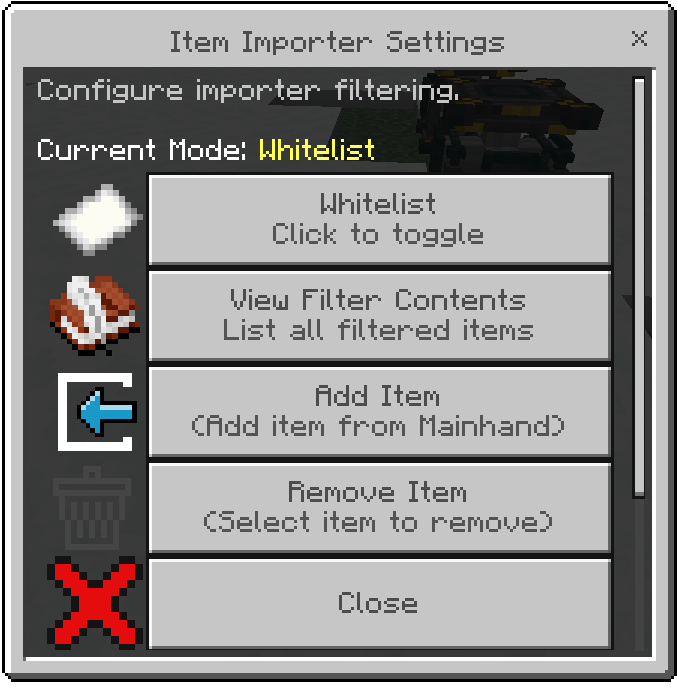
The Importer also supports Whitelist/Blacklist filtering. With a Smart Filter Upgrade, you can even map specific items to specific slots in the destination machine — perfect for machines that need ingredients in exact positions.
The Importer UI is also the same interface with or without upgrades. Filter and Smart Filter upgrades only add more configuration actions.
Color Networks
Like Energy Cables, you can dye Item Conduits to create independent item networks. Conduits of different colors won't connect to each other, so you can run multiple item lines side by side without mixing.
Crafting Recipe
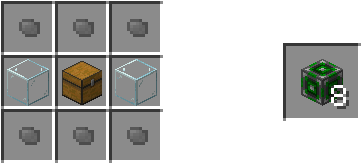
Item Conduit
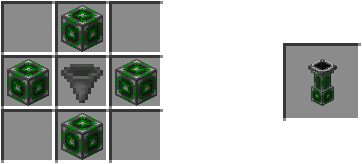
Item Exporter
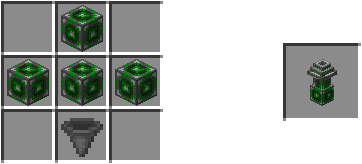
Item Importer
- Item Conduit — Crafts 8x per recipe.
- Item Exporter — Uses an Item Conduit + Hopper.
- Item Importer — Uses an Item Conduit + Hopper.